
Magic Photo Mosaic Maker rebuilds a picture out of hundreds or thousands of your own photographs. Give it a photo to recreate and a folder of pictures. It divides the photo into a grid of small squares, chooses one of your pictures for each square by its colour, and shows you the result in seconds. Where none of your pictures suits a square, it can put a word there instead, from a list you write, on a background coloured so that the square still looks right from a distance.
Download Magic Photo Mosaic Maker v1.0.0 for Windows x64
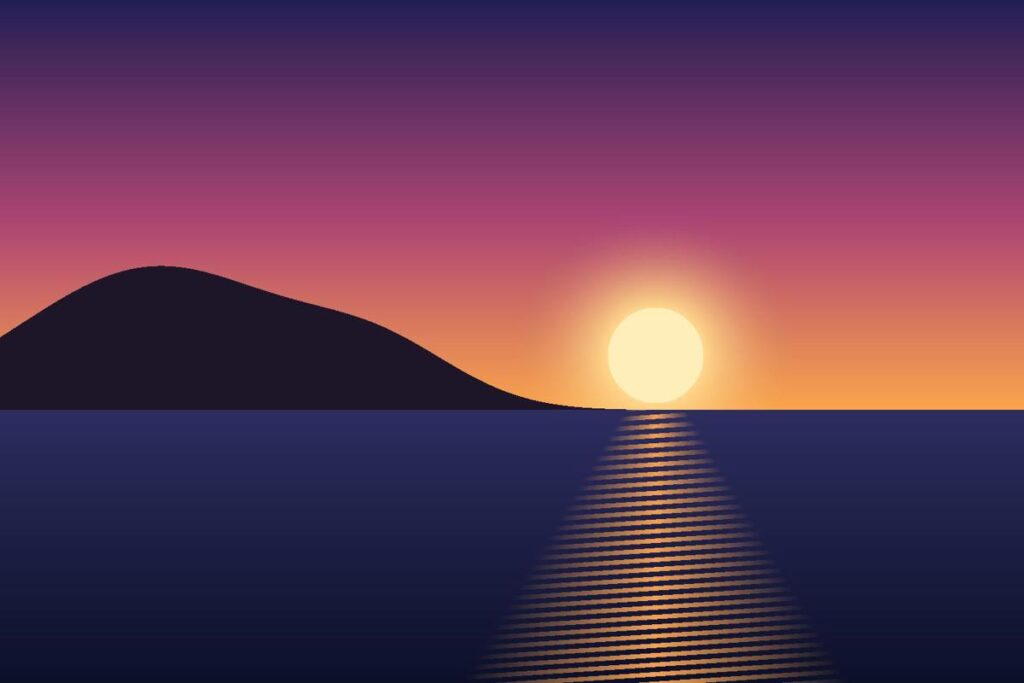
The image to recreate
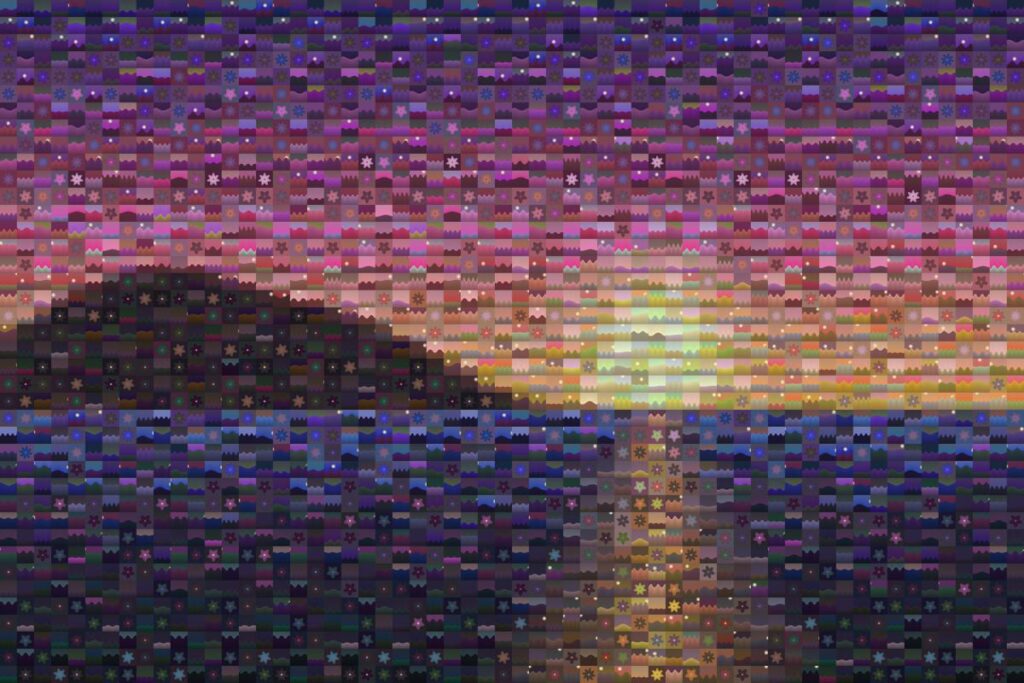
The mosaic: 60 tiles across, 2,400 tiles in all.
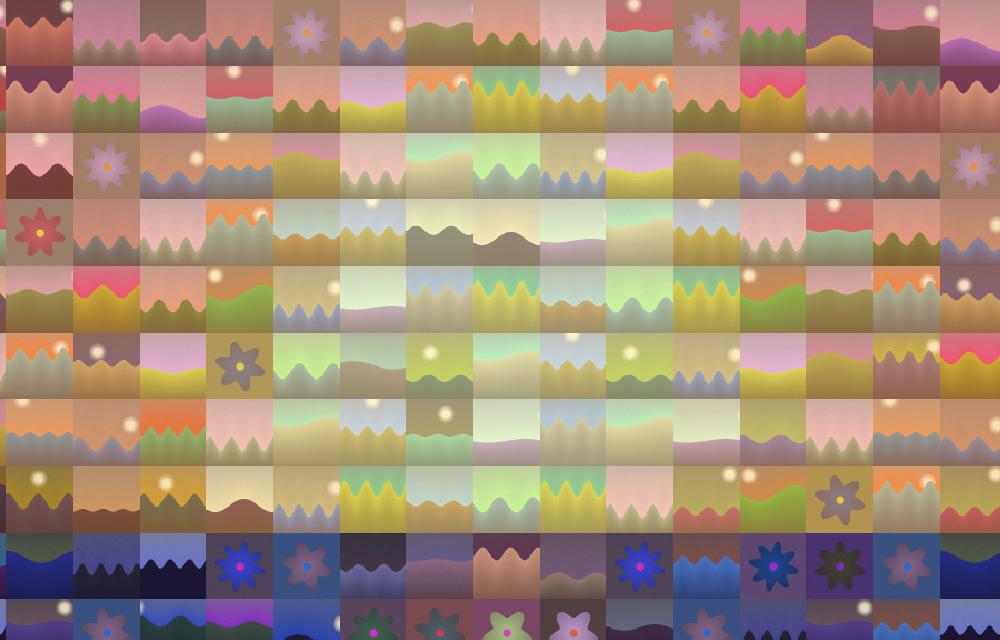
Close up, every tile is a whole picture.
The examples in this guide were made from a library of 500 simple landscapes and flowers. Your own photographs will give a much richer result.
Magic Photo Mosaic Maker is free. It runs on Windows, there is nothing to install, and it never connects to the internet.
What is in the download
- magic-pmm-app.exe is the program most people want: a window where you choose your pictures and see the mosaic change as you change the settings.
- magic-pmm.exe does the same work from the command line, for scripts and batches.
- ATTRIBUTIONS.md and two THIRD-PARTY-NOTICES files hold the licences of the components by other authors that the programs include. Keep them with the programs.
In this guide
- System Requirements
- Download and First Run
- Your First Mosaic
- Settings
- Words in the Mosaic
- Reading the Results
- Projects and Exporting
- The Command Line
- Questions and Troubleshooting
- No Warranty, No Liability, No Support.
1. System Requirements
| Operating system | Windows 10 or Windows 11, 64-bit. It has been tested on Windows 11. |
|---|---|
| Processor | A 64-bit Intel or AMD processor. More cores make the first reading of a folder faster. PCs with Arm processors are not supported. |
| Memory | 4 GB at least, 8 GB or more recommended. Very large JPEG and TIFF exports need more (see below). |
| Disk space | About 200 MB for the two programs, plus about 13 MB for every 1,000 photographs in the folders you use, for the cache. |
| Screen | The window needs at least 900 by 620 pixels. |
| Other software | None. Everything the programs need is inside them. There is no .NET or other runtime to install. |
| Internet | Not needed. The programs never connect to the network. |
| Administrator rights | Not needed, because nothing is installed. |
Picture formats
Photos to recreate and photographs in your folders can be JPEG, PNG, WebP, BMP or TIFF. Finished mosaics are saved as PNG, JPEG or TIFF.
HEIC is not supported. That is the format iPhones save photos in by default. Pictures in that format are left out. To use iPhone photos, convert them to JPEG first. To have the phone save JPEGs from now on, open Settings, then Camera, then Formats, and choose Most Compatible.
How long things take
The first time you use a folder of photographs, every picture in it is read once, and what the program learns about it is kept in a cache. As a rough guide, a two-core laptop reads 5,000 four-megapixel photographs in about 30 seconds. Bigger photographs, and folders on network or USB drives, take longer. After that, the same folder gives you a preview in about three seconds, and only new or changed photographs are read again.
Very large prints
A mosaic can be up to 36,000 pixels on its longest edge. A JPEG or TIFF export is built whole in memory, which needs at least 3 bytes for every pixel: about 1.2 GB for 24,000 by 16,000 pixels. A PNG export over 100 megapixels is written a strip at a time instead and needs far less, so choose PNG for very large prints.
2. Download and First Run
Download MagicPhotoMosaicMaker-1.0.0-win-x64.zip (80.9 MB).
Pro Tip: To check that the download is complete and unaltered, open PowerShell in the folder it was saved to and run Get-FileHash MagicPhotoMosaicMaker-1.0.0-win-x64.zip. It should print this SHA-256 hash:
EDFFE4DEC5A9F93F4C02C9BE4104BAA48078AD38907B00038654C3DCDDDB04E5Unzip it
- In File Explorer, right-click the zip file and choose Extract All.
- Choose a folder to keep the programs in, such as a folder in Documents, and select Extract.
- Open that folder and double-click magic-pmm-app.exe.
Run the programs from the folder you extracted them to, not from inside the zip file. There is no installer and nothing is added to the Start menu. To make the program easy to find, right-click magic-pmm-app.exe and choose Pin to Start, or Show more options and then Pin to taskbar.
If Windows says “Windows protected your PC”
The first time you open either program, Windows may show a blue box saying “Microsoft Defender SmartScreen prevented an unrecognized app from starting”. This happens because the programs are not signed with a paid code-signing certificate, so Windows does not recognise the publisher. It does not mean anything harmful was found.
If you downloaded the zip from this site, you can open the program anyway:
- Select More info.
- Check that the app is magic-pmm-app.exe (or magic-pmm.exe), then select Run anyway.
Windows remembers your choice, so you are asked only once for each program.
You can also do this before the first run: right-click the program, choose Properties, tick Unblock at the bottom of the General tab, and select OK.
If there is no Run anyway button, the PC is set up not to allow unsigned programs. This is common on computers managed by an employer or school. Ask whoever manages the computer.
The first run
The first time, the program may take a few seconds longer to open, while Windows unpacks the components inside it.
Before anything else, it shows a notice saying the program comes with no warranty, no liability and no support. Read it, then choose I accept to carry on or Quit to close the program. You are asked once. If a later version changes the wording, you are asked again.
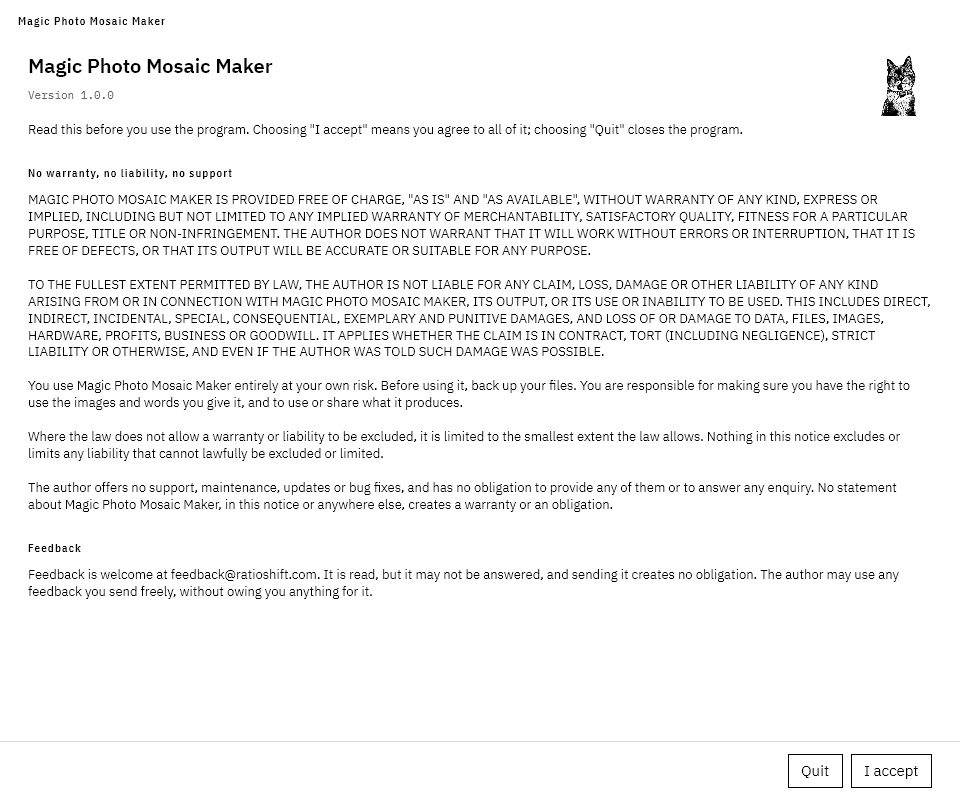
The notice shown the first time the program opens.
Once you accept, the main window opens. Next: your first mosaic.
Removing it
Delete the folder you extracted the programs to. To remove the cache as well, delete the folder %LOCALAPPDATA%\MagicPmm: type that into File Explorer’s address bar to find it. See Questions and Troubleshooting for what the cache holds.
3. Your First Mosaic
The window has three parts. The settings are down the left, the preview is on the right, and a status strip runs along the bottom. The title bar holds Open, Save, Export and About. Drag the title bar to move the window.
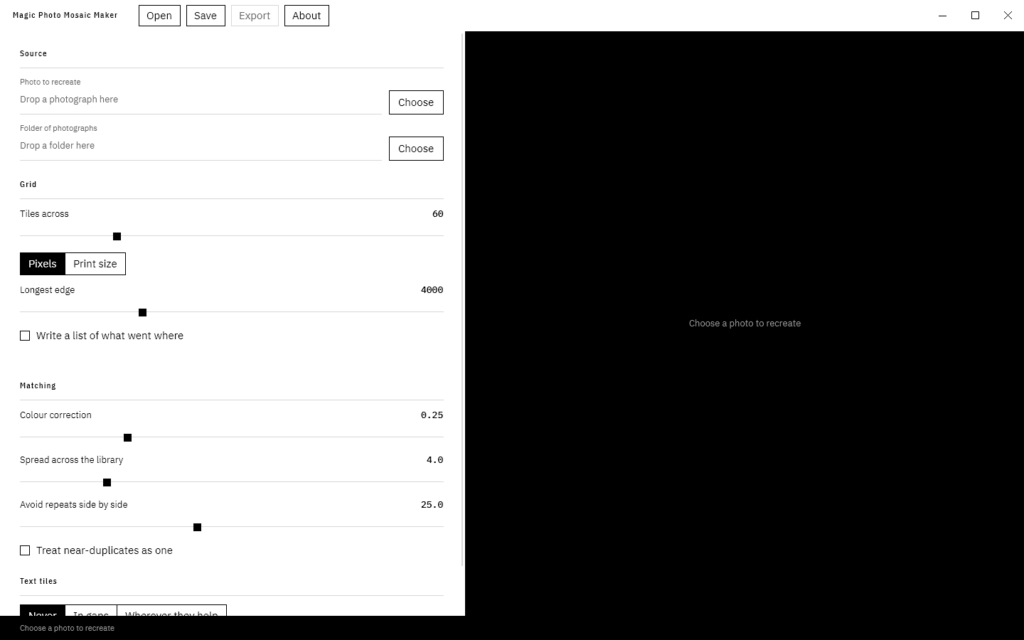
The window before a photo and a folder are chosen.
a) Choose a photo to recreate
Drag a picture from File Explorer onto the window, or select Choose beside “Photo to recreate”. You can also type or paste the picture’s full path into the box.
Pictures with bold shapes and strong contrasts work best: a face, a silhouette, a single subject against a plain background. Fine detail such as small text, crowds and thin lines is lost, because each tile stands for a whole patch of the picture.
b) Choose a folder of photographs
Drag a folder onto the window, or select Choose beside “Folder of photographs”. Pictures in folders inside it are used too. You can drag the photo and the folder onto the window together.
The more photographs the folder holds, and the more their colours vary, the better the mosaic. A few hundred is a start and a few thousand is better. The program only reads your photographs. It never changes, moves or deletes them.
Some files are left out: pictures less than 64 pixels on their shorter side, files that cannot be read as pictures, HEIC files, and folders that are links to other folders.
c) Wait for the first preview
The first time you use a folder, every photograph in it is read once. The status strip at the bottom shows how far it has got, and Cancel stops it. What the program learns about each photograph is kept in a cache, so the next time you use the same folder the preview comes back in seconds, and only new or changed photographs are read again.
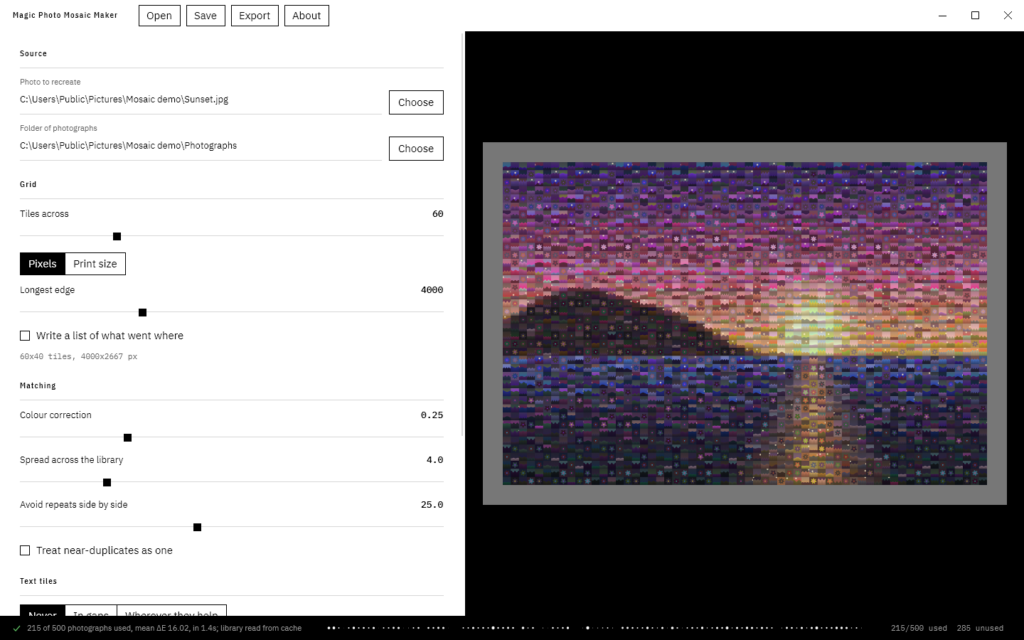
The first preview. The status strip reports how many photographs were used and how closely they match.
When the preview is ready, the status strip says how many of your photographs were used, how closely their colours match on average (the mean ΔE, where lower is better), how long it took, and whether the photographs were read from the cache. Reading the results explains all of this.
d) Adjust it
Change any setting and the preview is redrawn, usually within a second or two. The ones to try first are Tiles across, Colour correction and Spread across the library. Settings describes them all.
The same photographs with the same settings always give the same mosaic.
e) Export it
Select Export in the title bar. It is available once there is a preview. Choose a name and a type (PNG, JPEG or TIFF) and select Save. The finished mosaic is drawn at full size, and each photograph is read again at the size it will appear, so it is sharp even in a large print. That takes longer than a preview. The status strip shows its progress, and Cancel stops it without writing anything. When it is done, the status strip says where the mosaic was saved.
To come back to a mosaic later, save a project as well. Projects and Exporting explains how.
4. Settings
The settings run down the left of the window in four groups. Every change redraws the preview. The window starts with the default settings each time it opens; to keep yours, save a project (see Projects and Exporting).
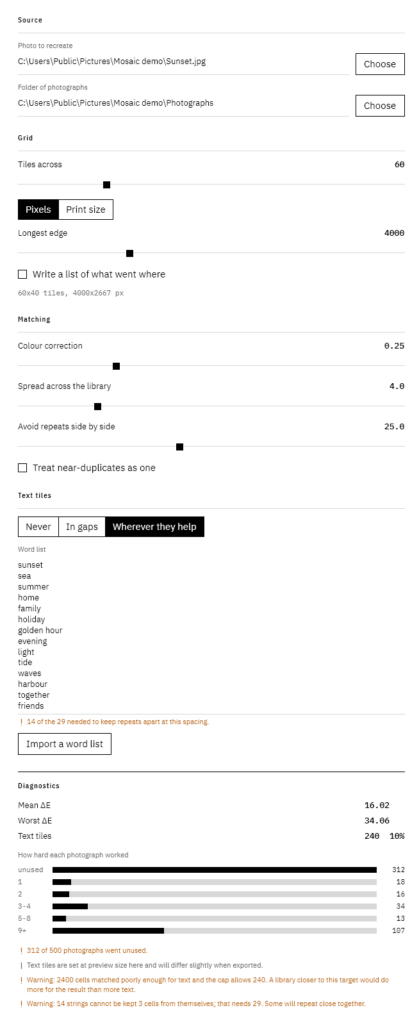
The settings, scrolled to show them all, with the diagnostics panel at the foot.
Source
Photo to recreateThe picture the mosaic reproduces. Drop it on the window, select Choose, or type its path.Folder of photographsWhere the tiles come from, including the folders inside it. Drop it on the window, select Choose, or type its path.Work from a smaller copyThis appears only when the photo to recreate is over 200 megapixels. The program re-reads that photo every time the grid changes, which is slow for a picture that size. Tick this to have it work from a smaller copy, kept in its cache folder, instead. The copy is still detailed enough for the finest grid.
Grid
Tiles acrossHow many tiles make up the width of the mosaic, from 8 to 240 (default 60). The number of rows follows from the shape of the photo, since tiles are square. More tiles show more detail, but each one is smaller and each photograph is needed more often.Pixels or Print sizeHow the size of the exported mosaic is given. It does not change the preview.Longest edgeWith Pixels chosen: the length of the mosaic’s longer side in pixels, from 800 to 12,000 (default 4,000).Longest edge in inches and Resolution in DPIWith Print size chosen: the length of the longer side in inches, from 2 to 60 (default 12), and the dots per inch to print at, from 72 to 600 (default 300). 300 DPI suits photo prints looked at up close. A poster seen from across a room looks fine at 150.Write a list of what went whereAlso writes a list of every tile and which photograph or word fills it, in a file beside the export. See Projects and Exporting.
Below these, a line such as “60×40 tiles, 4000×2667 px” gives the size of the grid and of the finished mosaic.
Matching
Colour correctionHow far each photograph is tinted toward the colour its square should be, from 0 to 1 (default 0.25). At 0 your photographs are left untouched, and at 1 each square becomes a flat colour, so the mosaic is just a blocky copy of the photo. Between 0.2 and 0.4 usually looks best: close enough to read the picture, while each tile still looks like a photograph.Spread across the libraryHow strongly the program avoids using the same photograph many times over the whole mosaic, from 0 to 20 (default 4). Raise it to use more of your photographs, at some cost to how closely the colours match. At 0 the closest match always wins, however often it has been used.Avoid repeats side by sideHow strongly the program keeps a photograph away from copies of itself nearby, from 0 to 60 (default 25). Raise it if you can see the same picture in clumps.Treat near-duplicates as oneCounts photographs that are almost identical, such as a burst of shots of the same scene, as a single photograph, so they cannot fill a patch of the mosaic between them.
Text tiles
Never, In gaps, Wherever they helpWhether, and how often, a square holds a word instead of a photograph. The default is Never.Word listThe words and phrases to use, one per line.Import a word listFills the word list from a text file with one word or phrase per line. It replaces what was in the box.
Words in the Mosaic explains these in full.
Diagnostics
At the foot of the settings, once there is a preview, the diagnostics panel shows how well your photographs suit the photo. See Reading the Results.
5. Words in the Mosaic
Some colours in a photo may be missing from your photographs, or poorly represented. Rather than fill those squares with a poor match, the program can put a word or short phrase there from a list you write. The word’s background is coloured so that, from a distance, the square still averages to the colour it should be. Names, places, dates, or a line from a poem or song split into short pieces all work well.
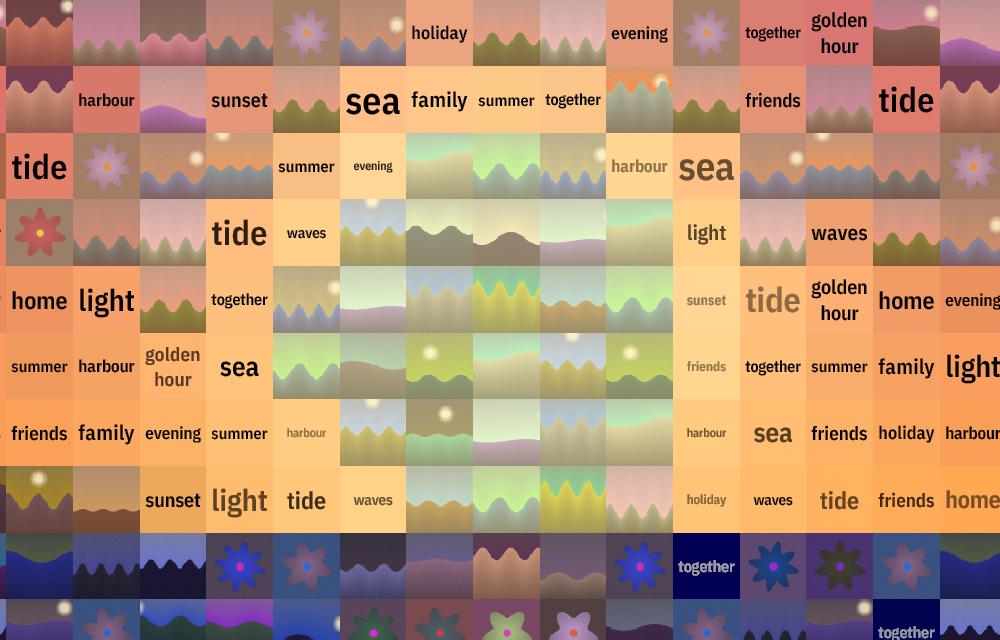
Words fill the squares whose colours the photographs could not match.
Turning them on
- Under Text tiles, type your words into the Word list, one word or phrase per line. Or select Import a word list to read them from a text file laid out the same way, which replaces what is in the box.
- Choose In gaps or Wherever they help.
NeverPhotographs only. This is the default.In gapsA word goes only where even the best photograph is a poor match, and at most a quarter of the squares get one. With a good library, this may mean few words or none.Wherever they helpA tenth of the squares always hold words, starting with the squares whose best photograph matches worst.
How words are placed
- Each word is sized to fill its square. Short words come out larger and easier to read. A phrase may be split over two lines.
- The text is dark or light, whichever reads better against its background. If a square’s colour cannot carry readable text, that square keeps its photograph.
- The program tries to keep each word at least three squares away from itself. If your list is too short for that, a note under the list says how many words it has and how many it needs, and some words will repeat close together. Add more words to fix it.
- The typeface is IBM Plex Sans Condensed SemiBold, which is built into the program, so the mosaic looks the same on every computer.
Preview and export
In the preview, words are set at the preview’s small size, so they look slightly different in the exported mosaic. The diagnostics panel reminds you of this whenever words are on. Export a mosaic to see the words as they will print.
The diagnostics panel also warns when more squares were poor matches than the limit allows, or when the list is too short. If most of the mosaic wants words, the best fix is photographs closer in colour to the photo, not more words.
6. Reading the Results
The preview
The preview on the right is the mosaic at 1,200 pixels across, redrawn whenever a setting changes. The export uses the same tiles in the same places, drawn at full size, so it is sharper and its words are set at their full size.
What a tile is, and why it was chosen
Rest the pointer on any square of the preview and a card appears beside it.
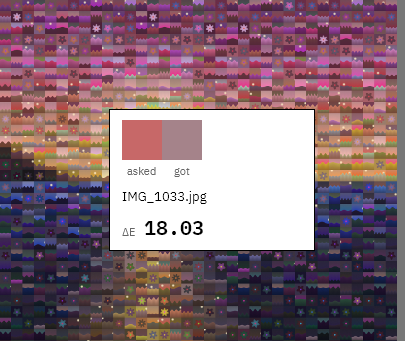
The card for one square.
- asked: The colour the photo has in that square.
- got: The average colour of the photograph placed there, before colour correction tints it. For a word, the average colour of the whole square.
- File Name: The photograph’s file name, or the word in quotation marks if the square holds a word.
- ΔE: How different the two colours are (delta E). Under about 2 is hard to see even side by side, around 10 is a clear difference, and higher numbers are further off. At a distance, the eye forgives a lot.
The status strip
The strip along the bottom of the window reports what the program is doing.

The status strip while a mosaic is being made.
- On the left is the latest message, with a mark to show what kind it is: a tick when something finished, an exclamation mark for a warning, and a cross when something failed.
- While the program works, the middle shows a progress bar and the current stage: Reading photographs, Measuring the photo, Sorting tiles, Choosing tiles, Placing words or Drawing. Cancel stops it and leaves the previous preview in place.
- When it has finished, the middle shows a band of dots in which every photograph in your library keeps its own place. The more often a photograph was used, the denser its dots, and a photograph that was not used leaves a gap. On the right, counts such as “215/500 used 285 unused” say how many of your photographs appear in the mosaic.
The diagnostics panel
At the foot of the settings (scroll down), the diagnostics panel shows how well your photographs suit the photo.
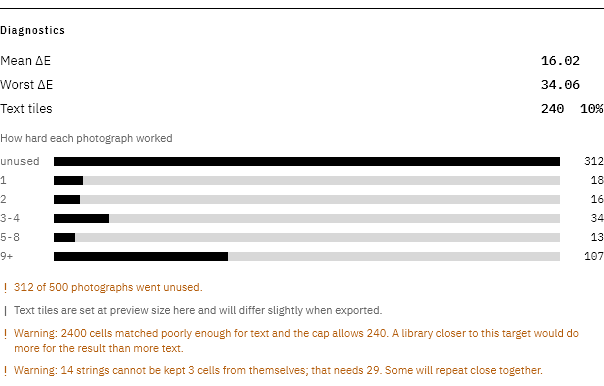
The diagnostics panel after a mosaic with words.
- Mean ΔE and Worst ΔE: The average colour difference over every square, and the largest. Lower is closer.
- Text tiles: How many squares hold words, and what share of the mosaic that is.
- How hard each photograph worked: How many photographs went unused, and how many were used once, twice, 3 to 4 times, 5 to 8 times, and 9 or more times.
- Notes: How many photographs went unused, a reminder that words differ slightly when exported, and any warnings from placing words.
What to do about it
- A high mean ΔE, or many words in In gaps mode: your photographs lack the colours the photo needs. Add photographs in those colours, raise Colour correction a little, or choose a photo whose colours suit your library.
- Many photographs used 9 or more times: the library is small for this grid. Add photographs, use fewer tiles across, or raise Spread across the library.
- The same picture in clumps: raise Avoid repeats side by side, or tick Treat near-duplicates as one if your library has bursts of similar shots.
7. Projects and Exporting
Projects
A project keeps everything needed to make a mosaic again: every setting, the photo to recreate, the folder of photographs and the word list. The window starts with the default settings each time it opens, so save a project for any mosaic you might want to come back to.
- To save, select Save in the title bar and choose a name. Projects are saved as
.mosaicfiles. - To open, select Open in the title bar, or drag a
.mosaicfile onto the window. The settings are restored and the preview is redrawn.
A project records where your pictures are, not the pictures themselves. If you move or rename the photo or the folder, choose them again after opening the project. The same photographs with the same settings give the same mosaic every time.
The command line reads the same project files. See The Command Line.
Exporting
Select Export in the title bar, choose a name and a type, and select Save. If you give no type, the mosaic is saved as PNG. The size comes from the Grid settings: see Settings.
| Type | Best for |
|---|---|
| PNG | Keeping every detail. The files are large. PNG is the best choice for very large prints, because a PNG over 100 megapixels is written a strip at a time and needs far less memory. |
| JPEG | Sharing and the web. The files are much smaller, saved at quality 90, with a very slight loss of detail. |
| TIFF | Print shops that ask for TIFF. It keeps every detail, compressed without loss. |
Exporting reads each photograph again at the size it appears, so it takes longer than a preview, and longer the bigger the mosaic. The status strip shows its progress, and Cancel stops it without writing anything. When it is done, the status strip says where the mosaic was saved.
If the folder you chose cannot be written to, the status strip says so. Choose another folder.
Sizes for printing
Choose Print size under Grid, then set the longest edge in inches and the resolution in DPI. For example, 24 inches at 300 DPI makes a mosaic 7,200 pixels on its longest edge. The line under the size settings shows the size in pixels before you export.
Count the tiles as well as the pixels. At 60 tiles across on a 24-inch print, each tile is 0.4 inches (about 1 cm) wide. For tiles people can make out up close, use fewer tiles across or a bigger print.
The list of what went where
Tick Write a list of what went where under Grid, and each export also writes a file beside it with .manifest.json added to its name, such as sunset.png.manifest.json. It lists every square of the mosaic: its column and row, its position and size in pixels, which photograph or word fills it, and how closely it matches. Use it to find the original of a tile you like, or to make a key for a print.
8. The Command Line
magic-pmm.exe makes mosaics without the window, for scripts, batches and repeated runs. It uses the same engine, the same cache and the same project files as the window.
Running it
Open the folder you extracted the programs to in File Explorer, right-click an empty part of the folder and choose Open in Terminal. In the terminal, start the program’s name with .\, as in the examples below. Put quotation marks around any path with spaces in it.
.\magic-pmm.exe --library "D:\Photos" --target "D:\portrait.jpg" --output "D:\mosaic.png"It prints its progress as it goes, and the path of each file it writes. .\magic-pmm.exe --help lists every option.
Examples
More tiles, more colour correction, and more of the library used:
.\magic-pmm.exe -l "D:\Photos" -t portrait.jpg -o mosaic.jpg --tiles-across 80 --blend 0.3 --variety 2A 36-inch poster at 150 DPI:
.\magic-pmm.exe -l "D:\Photos" -t portrait.jpg -o poster.png --inches 36 --dpi 150Words in the squares no photograph suits, from a text file with one word or phrase per line:
.\magic-pmm.exe -l "D:\Photos" -t portrait.jpg -o mosaic.png --words words.txtA project saved in the window, exported larger:
.\magic-pmm.exe --project sunset.mosaic --output sunset-large.png --longest-edge 12000Delete the cache and report the space freed:
.\magic-pmm.exe --clear-cacheOptions
Numbers are always written with a dot as the decimal separator, whatever the computer’s language settings, so the same command means the same thing everywhere.
Required, unless a project supplies them
| Option | What it does |
|---|---|
-l, --library <folder> | The folder of pictures to build the mosaic from. Folders inside it are searched too. |
-t, --target <image> | The picture to reproduce. |
-o, --output <file> | Where to write the mosaic. |
Quality: the two to reach for first
| Option | What it does |
|---|---|
--blend <n> | How far each tile is tinted toward the colour of its square, 0 to 1 (default 0.25). 0 is purely photographic, 1 is a flat pixelated copy of the target. |
--variety <n> | How hard tiles are discouraged from repeating (default 1). 0 lets the best match win every time; 2 spreads the library wider at some cost in colour accuracy. |
Grid
| Option | What it does |
|---|---|
--tiles-across <n> | Tiles along the target’s width (default 60). |
--tile-count <n> | An approximate total number of tiles instead of tiles across. |
--tile-ratio <r> | Tile width divided by height (default 1.0, square). |
Output
| Option | What it does |
|---|---|
--longest-edge <n> | Longest edge of the mosaic in pixels (default 4000). |
--inches <n> | Longest edge in inches instead, with --dpi. |
--dpi <n> | Resolution for --inches (default 300). |
-f, --format <name> | png, jpeg or tiff. Without it, the output file’s extension decides. Any other extension gets a warning, and the mosaic is written as PNG unless a project names another format. |
--jpeg-quality <n> | 1 to 100 (default 90). |
Text tiles
| Option | What it does |
|---|---|
-w, --words <file> | A text file with one word or phrase per line. Giving a list turns text tiles on. |
--text <mode> | off, gap-fill (the default) or quota. Gap-fill replaces only the squares no photograph suits, like In gaps in the window. Quota always fills a share of the squares, worst match first, like Wherever they help. |
--text-threshold <n> | How far off (in ΔE) a square’s best photograph must be before the square is considered for a word (default 12). |
--text-share <n> | Share of squares given to words, 0 to 1. For gap-fill it is a ceiling (default 0.25); for quota it is the target (default 0.1). |
--text-font <name> | An installed font family. The default is built in, so it renders the same everywhere. |
--text-rotation <deg> | A random tilt for each word, up to this many degrees either way (default 0). |
--text-radius <n> | How many squares apart the same word is kept (default 3). |
Matching
| Option | What it does |
|---|---|
--seed <n> | Fixes the order squares are filled in. The same seed gives the same mosaic. |
--candidates <n> | How many close matches are compared in detail for each square (default 40). |
--collapse-duplicates <n> | Treats near-identical pictures of the same colour as one tile. 8 is a good starting point; 0 is off. |
Library
| Option | What it does |
|---|---|
--thumbnail-size <n> | The size each picture is studied at, 16 to 256 pixels (default 64). |
--include-undersized | Keeps pictures too small to fill a tile. |
Project files
| Option | What it does |
|---|---|
--project <file> | Loads settings from a .mosaic file. Options given as well override it. |
--save-project <file> | Writes the settings used out as a .mosaic file, which the window can open. |
Other
| Option | What it does |
|---|---|
--manifest | Also writes <output>.manifest.json, listing every square. |
--cache <file> | Where to keep the cache. By default it is shared with the window. |
--no-cache | Neither reads nor writes the cache, including the smaller copy a project may ask to work a large target from. |
--clear-cache | Deletes the cache and any smaller copies of targets, reports the space freed, and exits. The next run rebuilds what it needs. |
--threads <n> | How many pictures to read at once (default one per processor core). |
-q, --quiet | No progress output. |
-h, --help | Lists the options. |
--version | Prints the version and exits. |
Exit codes
| Code | Meaning |
|---|---|
| 0 | Success. |
| 1 | The command or the settings were wrong, such as an unknown option or a value out of range. Nothing was attempted. |
| 2 | The run was attempted and could not finish, for example because a file could not be read or written. |
| 3 | Cancelled, for example with Ctrl+C. |
9. Questions and Troubleshooting
Windows says “Windows protected your PC”
The programs are not signed with a paid certificate, so Windows does not recognise the publisher. Select More info, then Run anyway. See Download and First Run.
My iPhone photos are not used
iPhones save photos as HEIC by default, and HEIC is not supported. Convert them to JPEG first, or set the phone to save JPEGs: open Settings, then Camera, then Formats, and choose Most Compatible.
Some of my photographs were left out
These are left out:
- pictures less than 64 pixels on their shorter side
- files that cannot be read as pictures, including damaged ones
- HEIC files
- folders that are links (shortcuts) to other folders, because a link can point back into the library and make the search endless. Choose the folder it points to directly instead.
The window does not list what it left out. To see the list, run the command line over the same folder (see The Command Line). It prints each file it left out and why.
The first preview takes a long time
The first time you use a folder, every photograph in it is read once. After that, the same folder gives a preview in seconds. Folders on network drives or USB sticks are slower to read. Copy the photographs to the computer first to speed it up.
The mosaic looks blotchy or the colours are off
Your photographs probably lack some of the colours the photo needs. Check the diagnostics panel. Then add photographs in the missing colours, raise Colour correction a little, or choose a photo whose colours suit your library better.
The same photographs keep appearing
Raise Spread across the library to use more of your photographs, or Avoid repeats side by side to keep copies apart. If your library has bursts of near-identical shots, tick Treat near-duplicates as one. Using fewer tiles across, or adding photographs, also helps.
No words appear
Check that Text tiles is not set to Never and that the word list has words in it. In gaps puts words only where no photograph suits, so with a good library there may be none. Choose Wherever they help to always have some.
Export is greyed out
Export becomes available once there is a preview. It is also unavailable while an export is running.
Where is the cache, and can I delete it?
The cache is in %LOCALAPPDATA%\MagicPmm. To open it, type that into File Explorer’s address bar. It holds a small thumbnail and colour details for each photograph the program has read, about 13 MB for every 1,000 photographs, plus smaller copies of any very large photos you used Work from a smaller copy with.
Deleting the cache is always safe. The next run reads your photographs again. Close the programs first, then either delete the folder, or run .\magic-pmm.exe --clear-cache, which reports the space freed. The same folder holds a small file recording that you accepted the notice. --clear-cache leaves that file alone. If you delete the whole folder, you are asked to accept the notice again.
Does it change my photographs, or send anything anywhere?
No. It only reads your photographs. It writes only the mosaics and projects you save, and its own cache. It never connects to the internet.
How do I remove it?
Delete the folder you extracted the programs to, and the %LOCALAPPDATA%\MagicPmm folder. Nothing else was installed.
Is there a Mac or Linux version?
Not yet. Magic Photo Mosaic Maker is currently for Windows only.
Where are the licences?
Select About in the title bar. It shows the version and the notice. Scroll down to Read the licences to see the licences of the components by other authors that the program includes. The same licences are in ATTRIBUTIONS.md and the two THIRD-PARTY-NOTICES files that came in the zip.
How do I get help?
Magic Photo Mosaic Maker comes with no support (see the notice). Feedback is welcome at feedback@ratioshift.com. All feedback is gratefully received, and is read, but it may not be answered.
10. No Warranty, No Liability, No Support
Magic Photo Mosaic Maker shows this notice the first time it runs, and again in About. The program opens only once you accept it.
MAGIC PHOTO MOSAIC MAKER IS PROVIDED FREE OF CHARGE, “AS IS” AND “AS AVAILABLE”, WITHOUT WARRANTY OF ANY KIND, EXPRESS OR IMPLIED, INCLUDING BUT NOT LIMITED TO ANY IMPLIED WARRANTY OF MERCHANTABILITY, SATISFACTORY QUALITY, FITNESS FOR A PARTICULAR PURPOSE, TITLE OR NON-INFRINGEMENT. THE AUTHOR DOES NOT WARRANT THAT IT WILL WORK WITHOUT ERRORS OR INTERRUPTION, THAT IT IS FREE OF DEFECTS, OR THAT ITS OUTPUT WILL BE ACCURATE OR SUITABLE FOR ANY PURPOSE.
TO THE FULLEST EXTENT PERMITTED BY LAW, THE AUTHOR IS NOT LIABLE FOR ANY CLAIM, LOSS, DAMAGE OR OTHER LIABILITY OF ANY KIND ARISING FROM OR IN CONNECTION WITH MAGIC PHOTO MOSAIC MAKER, ITS OUTPUT, OR ITS USE OR INABILITY TO BE USED. THIS INCLUDES DIRECT, INDIRECT, INCIDENTAL, SPECIAL, CONSEQUENTIAL, EXEMPLARY AND PUNITIVE DAMAGES, AND LOSS OF OR DAMAGE TO DATA, FILES, IMAGES, HARDWARE, PROFITS, BUSINESS OR GOODWILL. IT APPLIES WHETHER THE CLAIM IS IN CONTRACT, TORT (INCLUDING NEGLIGENCE), STRICT LIABILITY OR OTHERWISE, AND EVEN IF THE AUTHOR WAS TOLD SUCH DAMAGE WAS POSSIBLE.
You use Magic Photo Mosaic Maker entirely at your own risk. Before using it, back up your files. You are responsible for making sure you have the right to use the images and words you give it, and to use or share what it produces.
Where the law does not allow a warranty or liability to be excluded, it is limited to the smallest extent the law allows. Nothing in this notice excludes or limits any liability that cannot lawfully be excluded or limited.
The author offers no support, maintenance, updates or bug fixes, and has no obligation to provide any of them or to answer any enquiry. No statement about Magic Photo Mosaic Maker, in this notice or anywhere else, creates a warranty or an obligation.
Feedback
Feedback is welcome at feedback@ratioshift.com. It is read, but it may not be answered, and sending it creates no obligation. The author may use any feedback you send freely, without owing you anything for it.
Third-party components
Magic Photo Mosaic Maker includes components by other authors, each under its own licence (Apache-2.0, MIT or SIL OFL 1.1). ATTRIBUTIONS.md and the THIRD-PARTY-NOTICES files, which come with the programs, hold their notices and full licence texts, and the window shows them too, under About. Those licences govern those components, and nothing in this notice changes their terms.